cdmTicker — Help
An extension for Microsoft Dynamics 365 Business Central by cdm-IT & Consulting Services GmbH
What the app does
cdmTicker adds a scrolling news-ticker band to the Business Central role center. The band shows freely configurable key figures (KPIs) as a continuous marquee — much like a stock ticker — so that users keep their most important numbers in view without scrolling the role center or hunting for tiles.
- Live KPIs as a marquee — the ticker refreshes its values every 60 seconds without any user action.
- Clickable KPIs (drilldown) — one click opens the related list, for example Sales Orders or Customer Ledger Entries; the band pauses while the mouse hovers over it.
- Five built-in KPIs, any standard role center tile (cue field) from 16 supported cue tables, and the user's pending user tasks.
- Configured per role center — 15 standard role centers are supported; each KPI runs in one role center or globally in all enabled ones.
- Free choice of colors — background (solid or gradient) and text color via color picker or hex input.
- Extensible — custom KPI types and alternative filters can be added through integration events.
- No external services, no AI — all values are calculated inside Business Central under the user's own permissions.
This help follows the Key Usage Scenario Guide (PDF). The example used throughout is the Sales Order Processor role center in the CRONUS demonstration company.
Getting started
Requirements and installation
cdmTicker is installed like any other extension — from AppSource or, for a manual deployment, through Extension Management → Upload Extension. It requires Business Central version 28 (platform 28.0) or later and has no dependencies on other apps.
| Publisher | cdm-IT & Consulting Services GmbH |
|---|---|
| App name | cdmTicker |
| Platform / application | 28.0.0.0 or later |
| Dependencies | none |
| Permission set | cdmTicker (CDM Ticker) |
- Install the extension from AppSource or upload the app file in Extension Management.
- Assign the permission set cdmTicker to every user who should see the ticker and to every user who configures it. The set covers all objects of the app; no other app-specific permission is needed.
- Keep the users' normal data permissions in mind: the ticker calculates every KPI under the permissions of the user who is looking at it. A KPI whose source table the user may not read is simply left out for that user — the rest of the band keeps running.
Initializing the KPI catalog
The Ticker Setup page is the single place where the app is configured. Open it through Tell Me (Alt+Q) by searching for "Ticker Setup"; it is listed in the Administration category. On first opening, the page creates its setup record and applies the default colors. The KPI catalog, however, is built on request so that you decide when the role center lines are created.
- Open Ticker Setup.
- Choose the action Initialize Standard KPIs.
- The app now creates the 15 role center lines (only Business Manager is enabled by default), sets the default colors if all three color fields are empty, and builds the KPI catalog: for every supported role center it adds one line per countable tile of that role center's standard cue tables plus one line Pending User Tasks. All catalog lines are created disabled, so nothing appears in any role center yet.
- Read the confirmation message — it states how many KPI lines were created.
Good to know: The initialization merges — lines that already exist (same source table and field in the same role center) are kept unchanged, so you can run the action again after an upgrade to pick up new tiles without losing your configuration. Catalog lines receive sequence numbers 10, 20, 30, … per role center; manually added lines can use any free number.
User settings
The ticker appears in the role center that is assigned to the user's profile (role). Open My Settings, check the Role field and make sure it points to one of the 15 supported role centers — in this walkthrough Sales Order Processor. Users without a chosen profile fall back to the company's default profile.
Note: No personalization of the role center is required. The ticker band is embedded in the supported role centers by the app itself; whether it is shown is controlled solely by the Enabled flag in the Role Centers part of the Ticker Setup page.
Configuring the ticker
The Ticker Setup page
The page consists of three parts that are used from top to bottom:
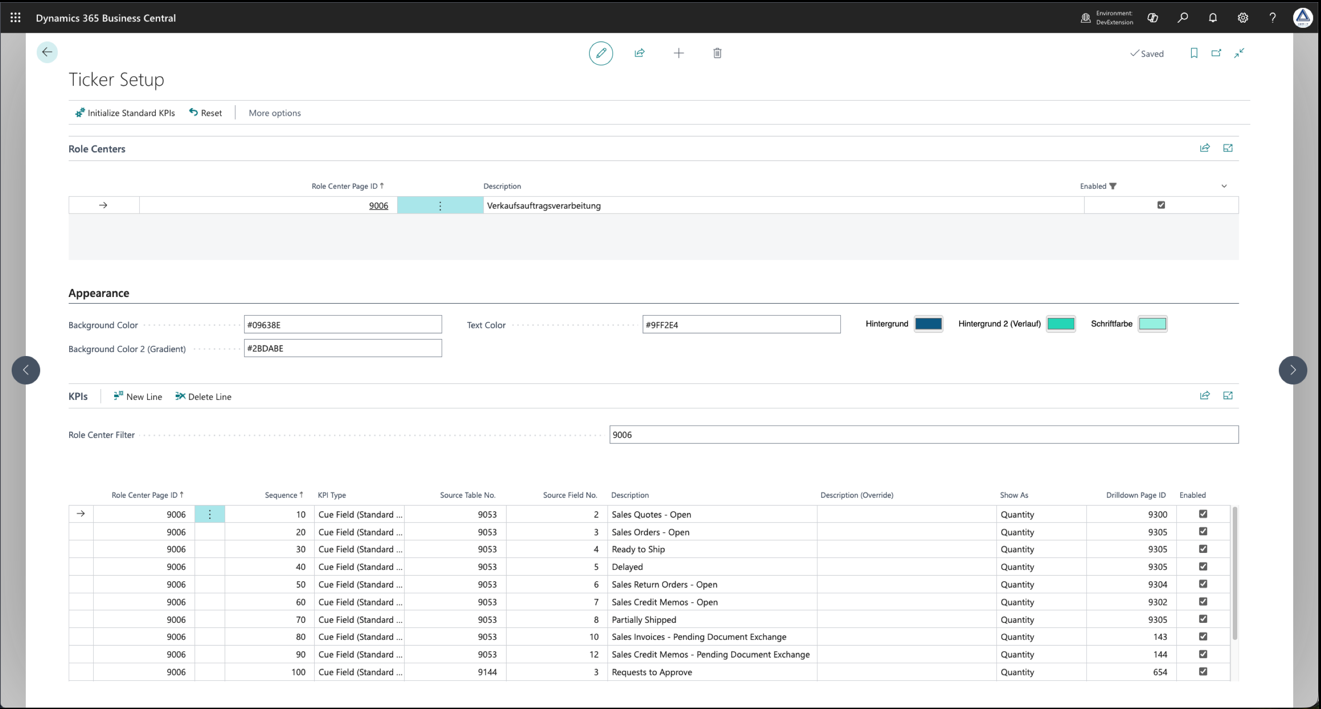
- Role Centers — the list of the 15 supported role centers with their page IDs. The Enabled check box switches the ticker on or off for the whole role center. Selecting a line here automatically filters the KPIs part below to that role center.
- Appearance — the three color fields Background Color, Background Color 2 (Gradient) and Text Color, followed by the color picker with the same three colors as browser color controls.
- KPIs — the list of ticker lines: which KPI runs in which role center, in which order, under which description and with which drilldown target.
Enabling a role center
- In the Role Centers part, locate the role center — in the walkthrough Sales Order Processor (9006).
- Set Enabled.
- Ask the users of that role center to reload the browser page (or switch to the role center). The band appears in the role center on the next load.
In a role center that is not enabled, the ticker collapses its row completely and takes no space at all.
Enabling KPIs from the catalog
- Select the role center in the Role Centers part. The Role Center Filter field of the KPIs part now shows its ID, and the list shows only the catalog lines of this role center — for 9006 the nine tiles of the Sales Cue (from Sales Quotes - Open to Sales Credit Memos - Pending Document Exchange), the two approval tiles and Pending User Tasks.
- Set Enabled on the lines you want in the band.
- Optionally adjust Sequence to change the running order.
The Description column shows the caption that will appear in the ticker — the standard tile caption in the user's language, unless an override is entered. The Drilldown Page ID column already carries the list that opens on a click, for example 9305 (Sales Order List) for Sales Orders - Open.
Adding the built-in KPIs as global lines
Five KPIs are built into the app and need no source table: Open Orders Count, Order Backlog (Amount), Shipments Today, Invoiced Today and Overdue Receivables. They are not part of the automatic catalog and are added manually — typically as global lines that run in every enabled role center:
- Clear the Role Center Filter field or set it to
9006|0so that global lines are visible. - Add a new line and enter Role Center Page ID
0— zero means "all enabled role centers". - Enter a Sequence (10, 20, 30, …) and choose the KPI Type.
- Leave Show As at the value that fits the KPI (amount KPIs are shown as amounts, counts as quantities) and leave Drilldown Page ID at 0 — the built-in KPIs open their standard list automatically.
- Manually added lines are enabled by default; the line appears in the band on the next refresh.
Global lines run first in the band, followed by the lines of the current role center — each group in sequence order.
Adding any standard tile as a cue field
Every countable tile of the 16 supported cue tables can be turned into a ticker line, also for role centers or tiles that are not part of the automatic catalog:
- Add a new line and enter the Role Center Page ID (or 0 for global).
- In Source Table No., use the lookup. It lists exactly the 16 supported cue tables. Choosing a table sets the KPI Type to Cue Field (Standard Cue) automatically.
- In Source Field No., use the lookup. It shows only the countable fields of that table — flow fields of type Integer or Decimal that are not obsolete. Selecting a field pre-fills two more columns: Show As (Decimal → Amount, Integer → Quantity) and Drilldown Page ID from the app's built-in mapping.
- Set Enabled if it is not set already.
Ticker values match the tiles: For every cue table the app applies the same filters as the standard activities page of that role center — work-date, due-date, user and location filters. User- and location-related tiles (warehouse, service, approvals) therefore show user-specific values in the ticker, exactly as they do on the tile.
Fine-tuning a line
| Field | Meaning |
|---|---|
| Role Center Page ID | Role center in which the line runs. 0 = global, the line runs in every enabled role center. |
| Sequence | Position of the KPI inside its role center. Global lines run first, then the role center's own lines. |
| KPI Type | One of the seven KPI types (see KPI reference). |
| Source Table No. / Source Field No. | Only for Cue Field (Standard Cue): the cue table and the flow field that is calculated. Changing the table clears the field and the drilldown. |
| Description (read-only) | The caption that actually appears in the ticker: the override if entered, otherwise the field caption or the KPI type name in the user's language. |
| Description (Override) | Overrides the automatic description (up to 50 characters). An override is shown to every user regardless of language. |
| Show As | Amount — two decimals plus the currency symbol from the General Ledger Setup; Quantity — whole number. |
| Drilldown Page ID | Page that opens when the KPI is clicked. 0 = automatic: the built-in mapping for cue fields, the standard list for the built-in KPIs. A value entered here always wins. |
| Enabled | Only enabled lines appear in the band. Catalog lines start disabled, manually added lines start enabled. |
Styling the band
The default colors come from the Business Central logo: background #09638E (deep blue) fading to #2BDABE (turquoise), text #9FF2E4 (mint).
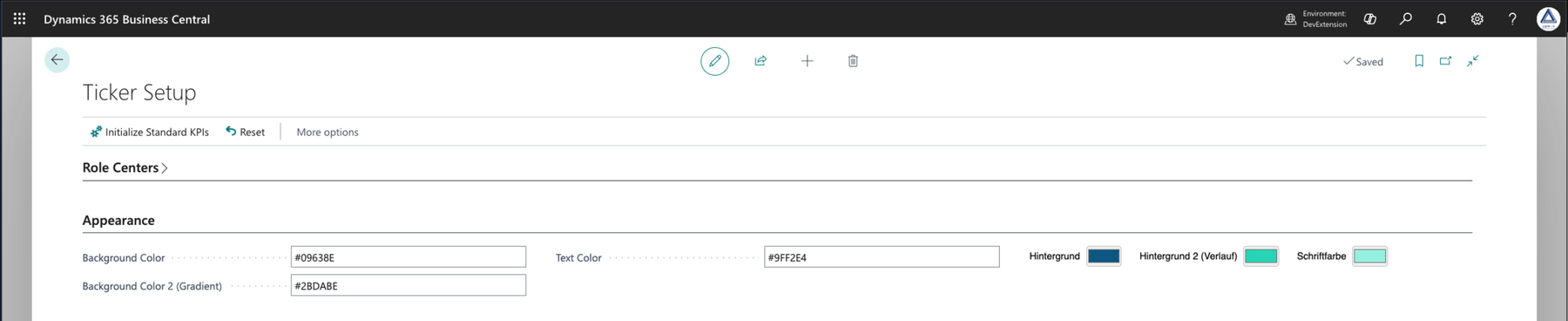
- In the Appearance part, pick a color in the color picker. The hex value is written to the matching field and saved immediately.
- Alternatively, type a value in the format
#RRGGBB(seven characters, leading #, hexadecimal digits). Any other input is rejected with an error message; the color picker follows a valid manual entry. - Leave Background Color 2 (Gradient) empty for a solid background, or fill it for a horizontal gradient from Background Color to Background Color 2.
- Reload the role center to see the result.
To return to the logo colors at any time, choose the action Restore Default Colors in the action bar of the Ticker Setup page. After a confirmation prompt the three color fields and the color picker are set back to #09638E, #2BDABE and #9FF2E4; KPI lines and role center activations are not touched.
Using the ticker in the role center
The running band
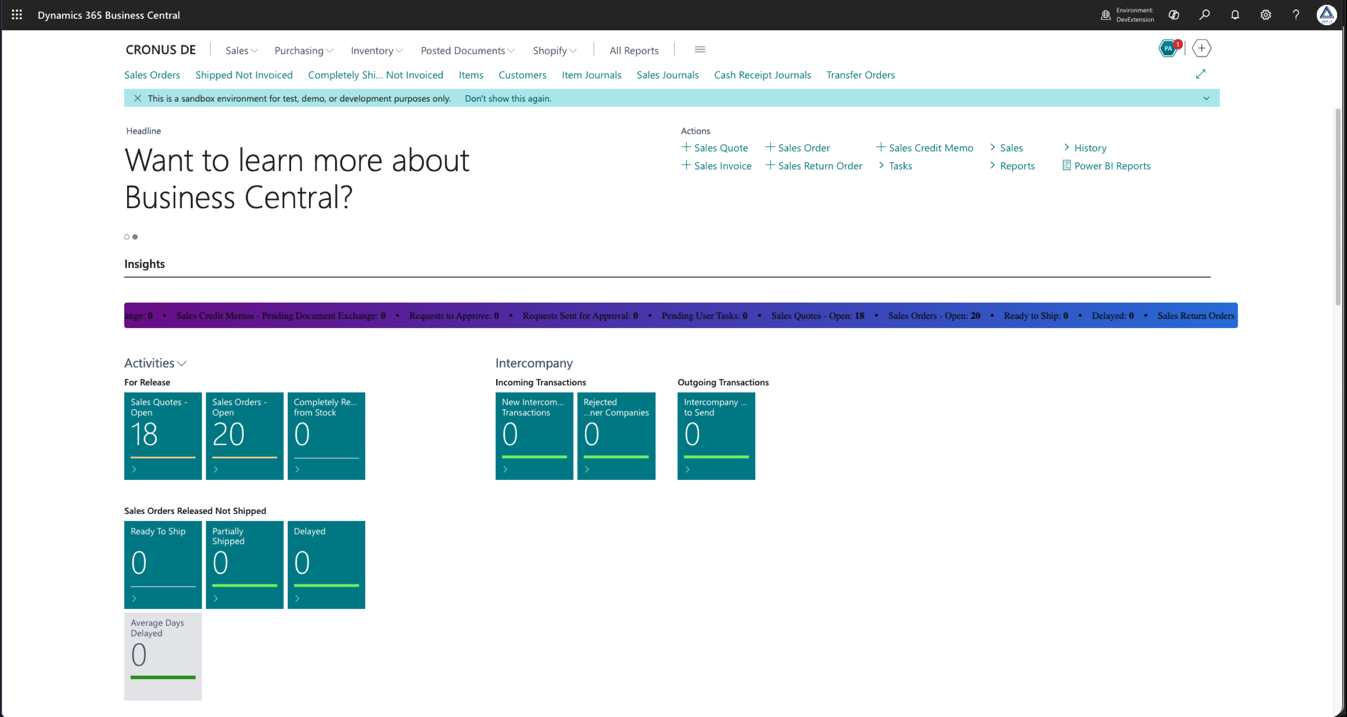
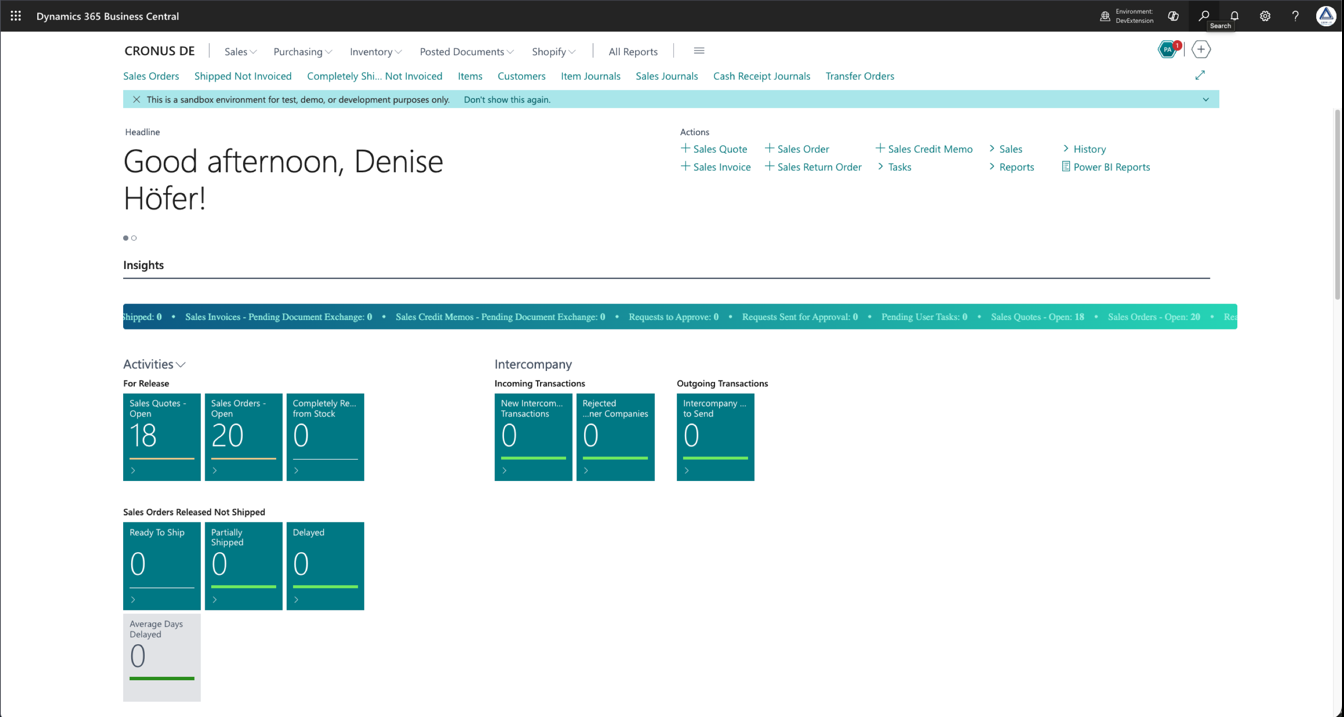
After the configuration above, the user sees the band in its own full-width row above the activity tiles, stretched across the width of the workspace. It runs at a constant speed of 80 pixels per second and loops without a visible gap. Every item consists of the description, a colon and the value in bold, separated from the next item by a dot. The values are the same as on the tiles of the Activities part below the band.
Automatic refresh
The band requests fresh values from Business Central every 60 seconds. If nothing changed, the running animation is left alone — the marquee does not restart. If a value changed, the band is rebuilt with the new content.
Pausing and drilling down
- Move the mouse over the band — the marquee pauses so you can read at your own pace, and the value under the pointer is underlined.
- Click the KPI. The configured or automatically determined page opens: for Sales Orders - Open the Sales Order List, for Requests to Approve the Requests to Approve page, for Pending User Tasks the User Task List.
- Move the mouse away — the marquee continues.
A line with Drilldown Page ID 0 and no automatic target (a few tiles have no meaningful list) reacts to a click with nothing — the band simply keeps running.
Language and formatting
- Automatic descriptions — the field captions of cue fields and the names of the built-in KPI types — appear in the language of the user's session. An override entered in Description (Override) is shown verbatim to every user.
- Amounts are formatted with two decimals followed by the currency symbol of the General Ledger Setup; quantities are whole numbers.
- Dates used in the cue filters follow the user's work date, exactly like the tiles.
When a KPI cannot be calculated
Each KPI is calculated in isolation. A line that cannot produce a value — because the user lacks permission to the source table, the source field has become obsolete after an upgrade, or the field is no longer a flow field — is skipped silently for that user. The remaining KPIs are unaffected, so a broken line never takes the whole band down.
KPI reference
KPI types
| KPI type | Meaning / calculation | Default drilldown |
|---|---|---|
| Open Orders Count | Number of open sales orders (document type Order) in the company. | Sales Order List |
| Order Backlog (Amount) | Sum of Outstanding Amount (LCY) over all sales order lines — the not yet invoiced order backlog in local currency. | Sales Order List |
| Shipments Today | Number of posted sales shipments with today's posting date. | Posted Sales Shipments |
| Invoiced Today | Sum of Sales (LCY) of customer ledger entries of type Invoice posted today. | Customer Ledger Entries |
| Overdue Receivables | Sum of Amount (LCY) of detailed customer ledger entries whose initial due date lies before today (posting date up to today). | Customer Ledger Entries |
| Cue Field (Standard Cue) | Value of any countable standard tile: the flow field given by Source Table No. and Source Field No., calculated with the same filters as the original tile. | Built-in mapping per tile, for example Sales Orders - Open → Sales Order List |
| Pending User Tasks | Number of the current user's pending user tasks. | User Task List |
A manually entered Drilldown Page ID takes precedence over the default for every type.
Supported cue tables
The lookup on Source Table No. offers these 16 cue tables. The right-hand column shows which of them the automatic catalog assigns; the others are available for manually added lines.
| Table | Topic | In the automatic catalog |
|---|---|---|
| 1313 Activities Cue | Business Manager activities (sales, purchasing, payments) | Business Manager |
| 9046 Account Payable Cue | Payables / payments | manual only |
| 9050 Warehouse Basic Cue | Warehouse (basic) | Warehouse Manager |
| 9051 Warehouse WMS Cue | Shipping and receiving (WMS) | Warehouse Manager, Shipping and Receiving (WMS) |
| 9058 Warehouse Worker WMS Cue | Warehouse worker (WMS) | Warehouse Worker (WMS) |
| 9052 Service Cue | Service | Service Dispatcher |
| 9053 Sales Cue | Sales | Sales Order Processor, Sales Manager |
| 9054 Finance Cue | Finance | Accountant |
| 9055 Purchase Cue | Purchasing | Purchasing Agent |
| 9056 Manufacturing Cue | Manufacturing | Production Planner, Shop Supervisor |
| 9057 Job Cue | Projects | manual only |
| 9059 Administration Cue | Administration / job queue | IT Manager |
| 9063 Relationship Mgmt. Cue | Relationship management (CRM) | manual only |
| 9144 Approvals Activities Cue | Approvals | most role centers |
| CRM Synch. Job Status Cue | Dataverse synchronization | IT Manager |
| User Security Status | User security status | Security Administrator |
Supported role centers
The ticker is embedded in the following 15 standard role centers. Activation happens exclusively through the Enabled check box in the Role Centers part of the Ticker Setup page. The last column lists the cue tables that Initialize Standard KPIs assigns to the role center; every role center additionally receives one Pending User Tasks line.
| Page ID | Role center | Standard KPI catalog (cue tables) |
|---|---|---|
| 9022 | Business Manager — enabled by default | Activities Cue, Approvals Activities Cue |
| 9006 | Sales Order Processor | Sales Cue, Approvals Activities Cue |
| 9027 | Accountant | Finance Cue, Approvals Activities Cue |
| 9005 | Sales Manager | Sales Cue (thematic assignment — the role center itself has no standard tiles) |
| 9007 | Purchasing Agent | Purchase Cue |
| 9008 | Warehouse Manager | Warehouse Basic Cue, Warehouse WMS Cue, Approvals Activities Cue |
| 9000 | Shipping and Receiving (WMS) | Warehouse WMS Cue, Approvals Activities Cue |
| 9009 | Warehouse Worker (WMS) | Warehouse Worker WMS Cue, Approvals Activities Cue |
| 9010 | Production Planner | Manufacturing Cue, Approvals Activities Cue |
| 9012 | Shop Supervisor | Manufacturing Cue |
| 9016 | Service Dispatcher | Service Cue, Approvals Activities Cue |
| 9018 | IT Manager | Administration Cue, CRM Synch. Job Status Cue |
| 9019 | CEO and President | — (no standard tiles; use global lines or manually added lines) |
| 9024 | Security Administrator | User Security Status, Approvals Activities Cue |
| 9028 | Team Member | Approvals Activities Cue (the standard Team Member cue table is marked obsolete and is deliberately not used) |
Administration
Resetting the setup
The action Reset on the Ticker Setup page asks for confirmation, then deletes all KPI lines and role center activations, restores the default colors and runs the initialization again. Use it to return to a clean catalog; manual lines, overrides and activations are lost. If only the colors should go back to the defaults, use Restore Default Colors instead — it changes nothing but the three color fields.
Rehearsal with performance test data
For a load rehearsal before the go-live, the Ticker Setup page offers two actions that are visible and executable only for users with the SUPER permission set:
- Create Performance Test Data — after a confirmation prompt, creates about 10,000 records per KPI type in the ticker's source tables (sales orders and lines, posted shipments, customer ledger entries, detailed customer ledger entries, user tasks, purchase orders). A progress dialog shows the current KPI type, the number of records inserted out of the total, the percentage and a progress bar. Every record carries the marker
CDMPERFin its document number or title. - Delete Performance Test Data — removes exactly those records again; other data is untouched.
Note: The creation is refused with an error message on a production environment in the Business Central online (SaaS) infrastructure. Run it in a sandbox, a test environment or an on-premises installation only, and delete the data after the rehearsal.
Troubleshooting
| Symptom | Cause | Remedy |
|---|---|---|
| No band in the role center | The role center is not enabled, or the user's profile points to a role center that is not supported | Set Enabled for the role center in Ticker Setup; check the role in My Settings; reload the browser page |
| Band is visible but empty | No enabled line for this role center and no global line | Enable catalog lines for the role center or add global lines (Role Center Page ID 0) |
| One KPI is missing for a user | The user lacks read permission on the source table, or the source field is obsolete | Grant the data permission, or replace the line with a current field |
| Ticker value differs from the tile | Different work date, or a manually changed filter via an event subscription | Compare the work date in My Settings; check custom subscribers of OnBeforeApplyFilters |
| Color input is rejected | Value not in the format #RRGGBB | Enter seven characters: # followed by six hexadecimal digits, for example #09638E |
| Description appears in the wrong language | An override is entered on the line | Clear Description (Override) to fall back to the automatic description in the user's language |
| Click on a KPI does nothing | Drilldown Page ID is 0 and the tile has no mapped target | Enter the desired list page in Drilldown Page ID |
| Performance test actions are not shown | The user does not have the SUPER permission set | Sign in as a SUPER user in a non-production environment |
Extensibility (for developers)
- The enum
CDM Ticker KPI Typeis extensible — add your own KPI types in an extension. OnFormatCustomKPI(codeunit CDM Ticker Data Mgt.) — calculate the value of a line yourself; setIsHandledto replace the standard calculation.OnBeforeApplyFilters(codeunit CDM Ticker Cue Filters) — override or extend the cue filters.OnCreateTestDataForCustomKPIandOnDeleteCustomTestData(codeunit CDM Ticker Perf. Test Data) — supply and remove rehearsal data for custom KPI types.
Data handling
- cdmTicker calculates every value inside Business Central. No data leaves the environment, no external service is called and no AI is involved.
- Every KPI is evaluated under the permissions of the user who views the band. The app does not elevate permissions; a value the user could not see on a tile or in a list is not shown in the ticker either.
- The setup data of the app (role center activations, KPI lines and colors) is stored in three tables of the extension in the company's database and is classified as customer content.
- The app registers a publisher telemetry connection (Azure Application Insights) as foreseen by the Business Central platform. The platform sends operational signals about the extension — for example errors and performance events — to the publisher; KPI values and business data are never part of that telemetry.
Details are in the End User License Agreement and in our privacy statement.
Frequently asked questions
Do I have to personalize the role center for the band to appear?
No. The band is embedded by the app in the 15 supported role centers. Whether it is visible is controlled solely by the Enabled check box in the Role Centers part of the Ticker Setup page — plus a reload of the browser page.
Why does the ticker show different values for a colleague than for me?
Because every KPI is calculated under the permissions and the work date of the respective user — exactly like the tiles. User- and location-related tiles (approvals, warehouse, service) are user-specific by design.
Can I add a tile that is missing from the catalog?
Yes. Add a new line in the KPIs part and choose table and field via lookup. The lookup shows exactly the 16 supported cue tables and, within them, only the countable, non-obsolete flow fields.
Will an upgrade overwrite my settings?
No. Initialize Standard KPIs merges: existing lines are kept unchanged, new tiles are added as disabled lines. Only the Reset action deletes your configuration — after confirmation.
How fast does the band run, and can I stop it?
The band runs at 80 pixels per second and loops without a gap. As soon as you move the mouse over it, it pauses; a click opens the related list.
Is any data sent to cdm-IT or third parties?
No. All values are calculated in your Business Central environment. The platform only sends technical operational telemetry (errors, performance) to the publisher — never KPI values or business data.
Support
cdm-IT & Consulting Services GmbH
Gothaer Weg 12, 40627 Düsseldorf, Germany
Email: support@cdm-it.de
Web: cdm-it.de
When contacting us, please include your Business Central version, the app version (page Extension Management), the affected role center and, if possible, a screenshot of the Ticker Setup page.